
TiviMate Guide
How to Setup TiviMate IPTV Player
Last updated: April 2026
TiviMate is one of the most popular IPTV players for Firestick and Android TV. It offers a polished interface, reliable EPG support, and works with M3U playlists and Xtream Codes. This guide walks you through installation, playlist setup, and settings for smooth streaming.
Sports viewers: line up channels with our live sports schedule or today's football on TV before you favourite Sky Sports or TNT slots in the EPG.
Quick Answer
To set up TiviMate on your device:
- Install Downloader from the Fire TV App Store and enable Apps from Unknown Sources
- Use Downloader to download and install the TiviMate APK
- Launch TiviMate and go to Settings → Add playlist
- Add your subscription via M3U URL or Xtream Codes (server URL, username, password)
- Configure EPG and playback settings for smooth streaming
What is TiviMate IPTV Player
TiviMate is a premium IPTV player app designed for Android-based devices:
- IPTV player — Streams live TV channels over the internet using your IPTV subscription
- M3U playlists — Works with M3U and M3U8 playlist URLs from your provider
- Xtream Codes login — Supports server URL, username, and password for Xtream Codes–based providers
- Firestick & Android TV — Compatible with Amazon Fire TV Stick, Fire TV, and Android TV devices
Compare IPTV subscription plans and best IPTV apps to find a service that works with TiviMate.
Looking for the best IPTV apps? See our guide to the best IPTV player apps.
How to Install TiviMate on Firestick
TiviMate is not in the Amazon App Store. Install it via sideloading using Downloader. Follow these steps:
Step 1
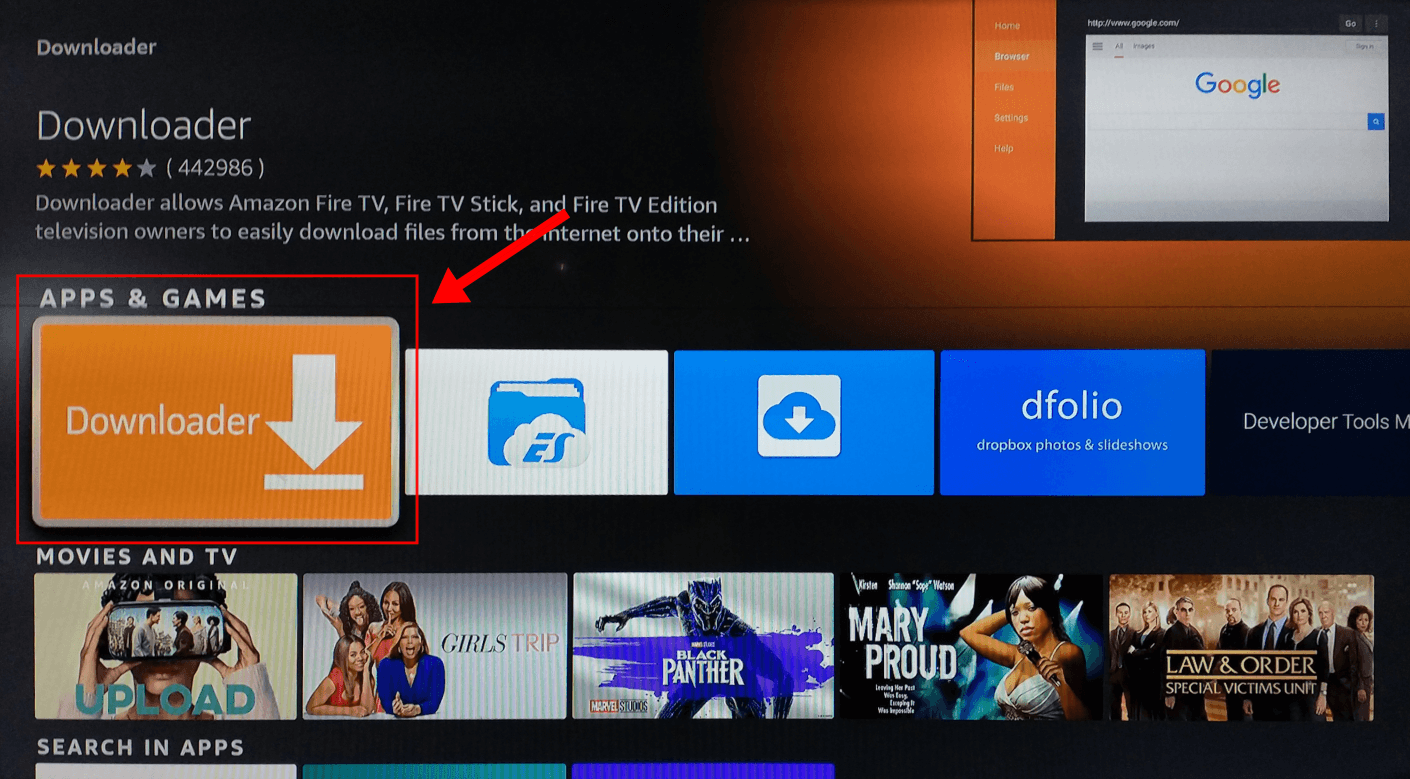
Install Downloader
Search for "Downloader" in the Fire TV App Store and install it.
Step 2
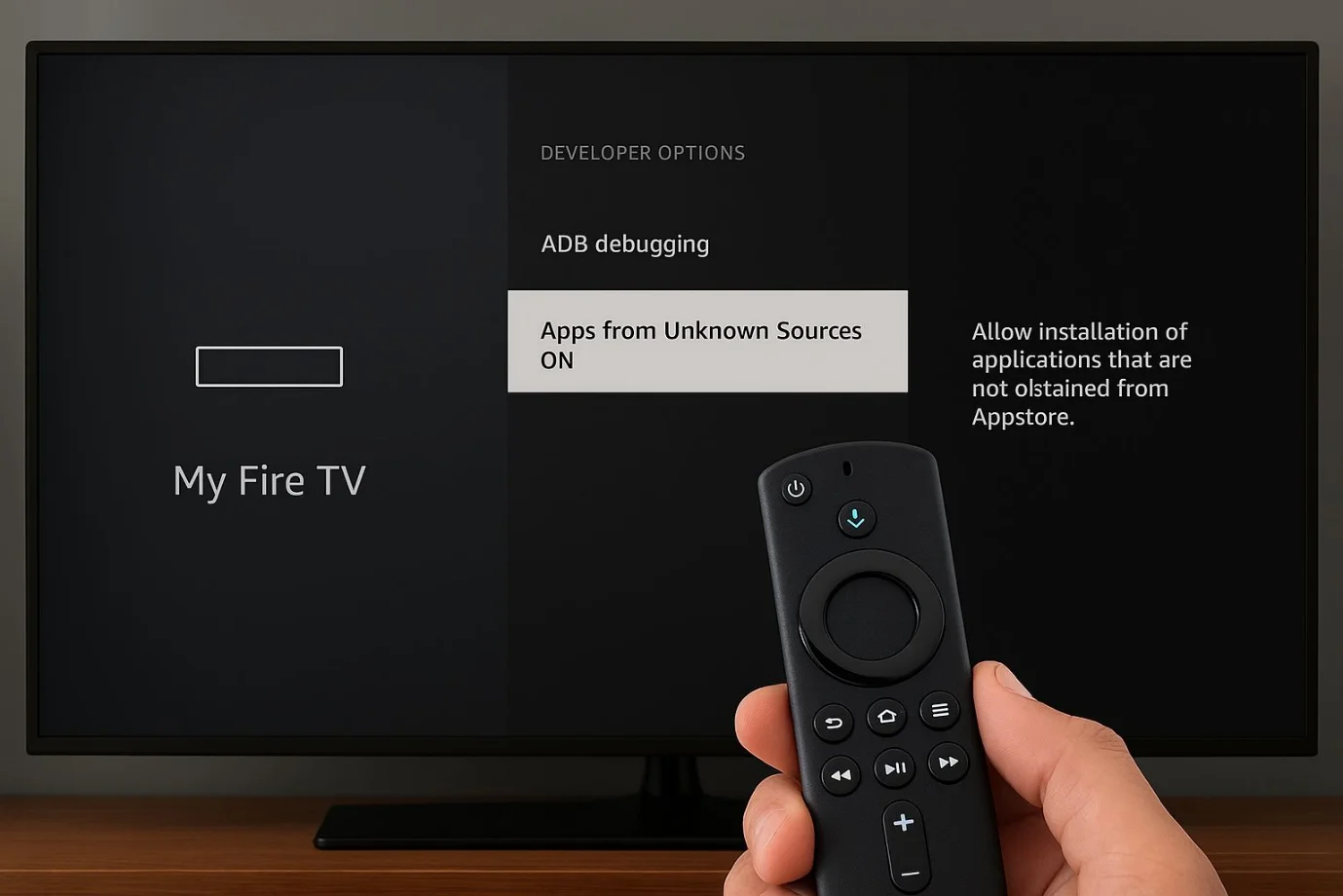
Enable Unknown Sources
Go to Settings → My Fire TV → Developer Options → Turn on "Apps from Unknown Sources".
Step 3
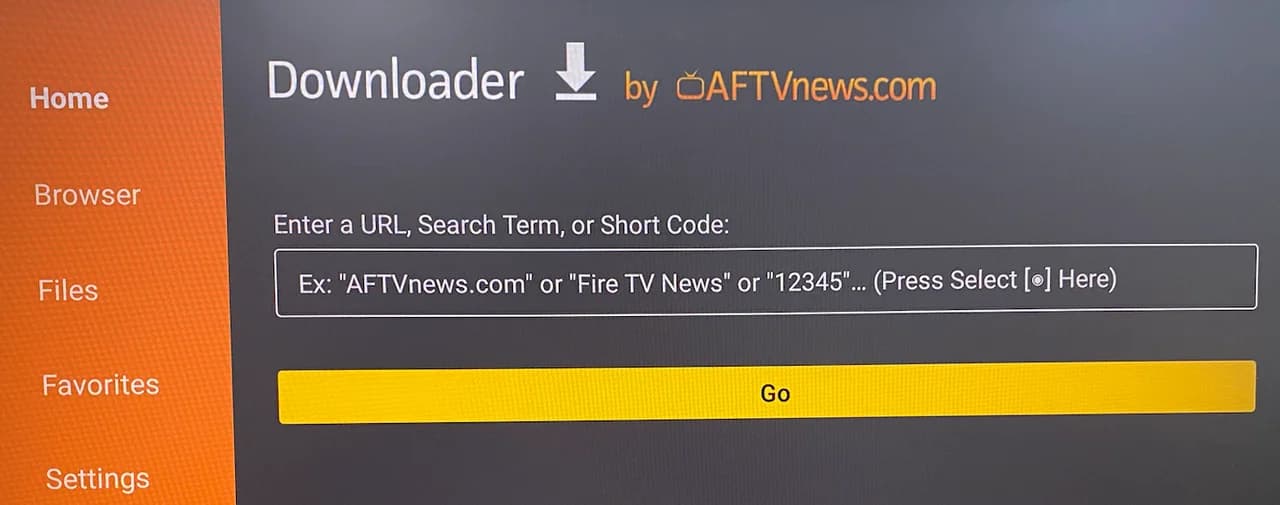
Install TiviMate APK
Open Downloader and enter the TiviMate APK URL (from the official TiviMate site or your provider). Download and install when prompted.
Step 4
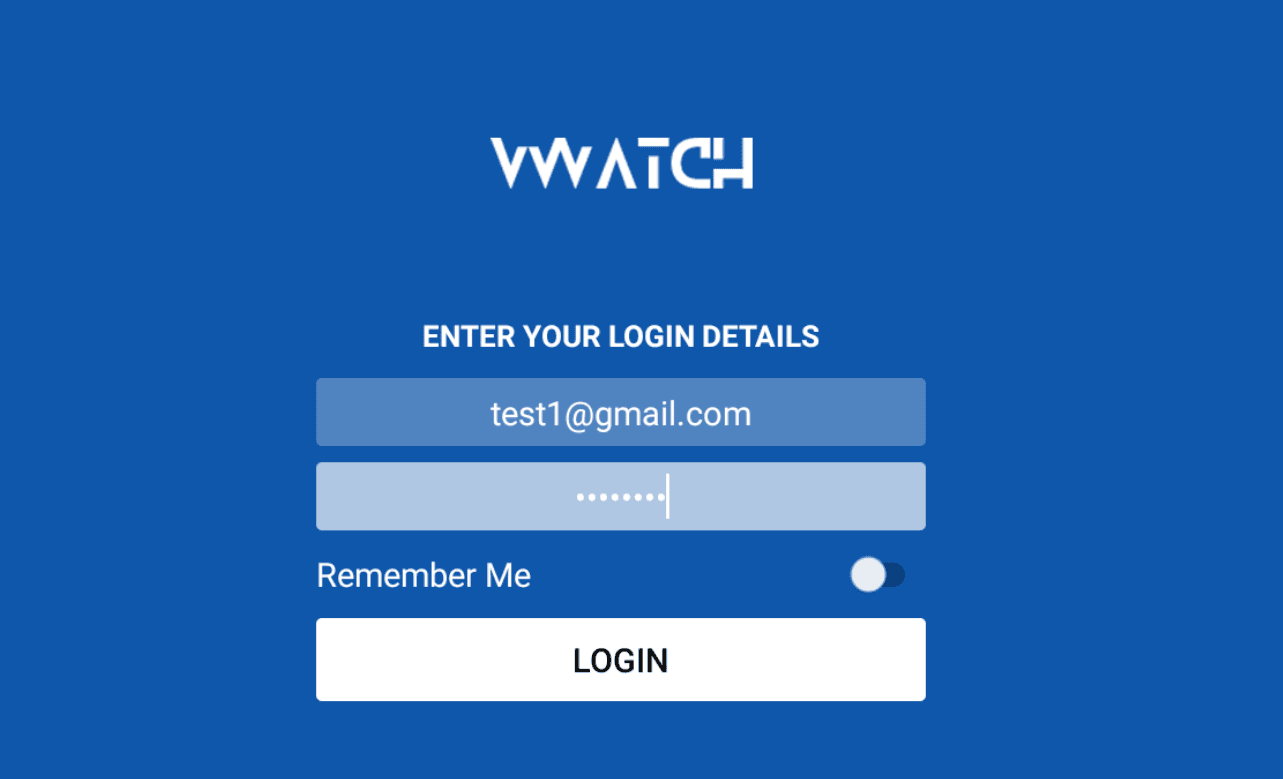
Launch TiviMate
Open TiviMate from Your Apps. Add your playlist using the steps below.
Follow this Firestick IPTV installation guide for step-by-step instructions. For Samsung Smart TV, see how to watch IPTV on Samsung Smart TV.
How to Add IPTV Playlist to TiviMate
You can add your IPTV subscription in two ways:
Method 1: Add M3U playlist URL
If your provider gives you an M3U or M3U8 link:
- Open TiviMate → Settings → Add playlist
- Choose "Add URL" or "Playlist"
- Paste the M3U URL (e.g. https://example.com/get.php?...) from your provider
- Save; channels will load automatically
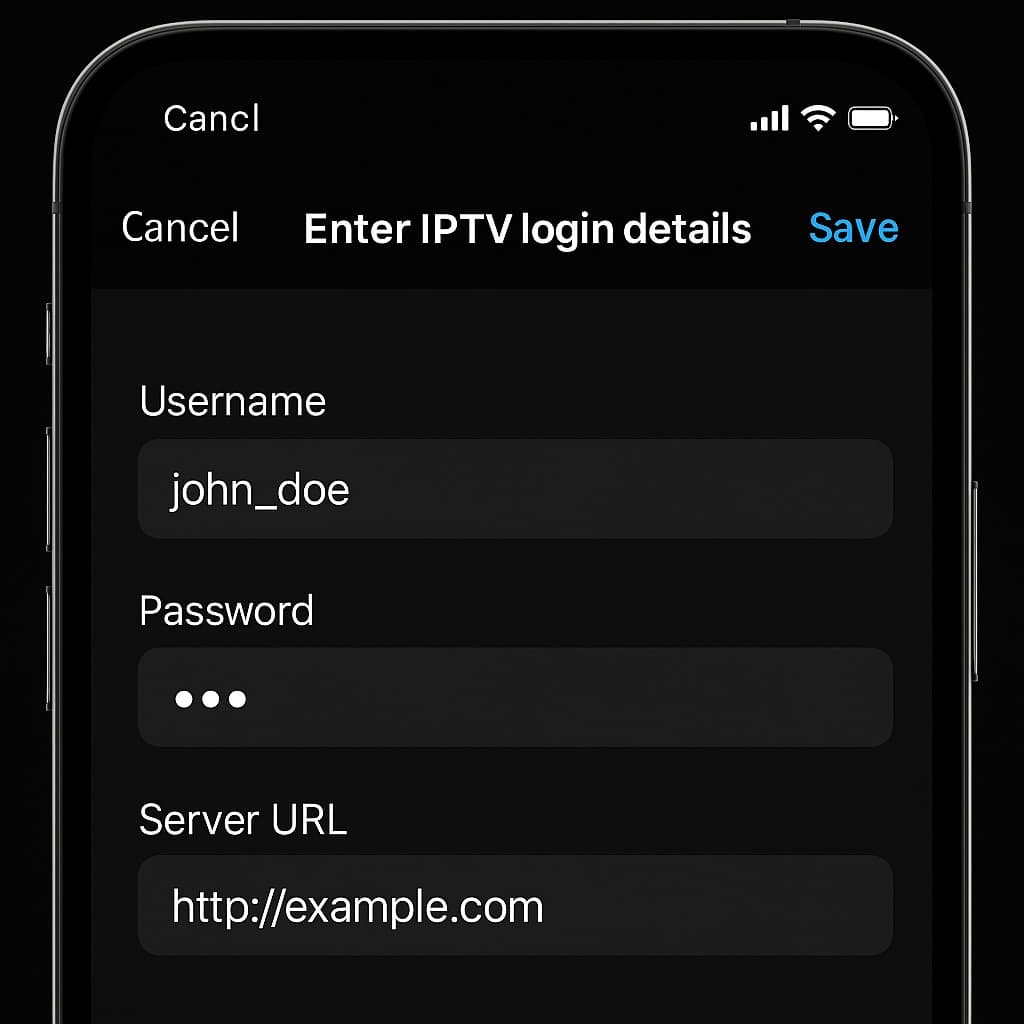
Method 2: Add Xtream Codes login
If your provider uses Xtream Codes:
- Open TiviMate → Settings → Add playlist
- Choose "Xtream Codes API"
- Enter server URL (e.g. http://server.example.com:port), username, and password
- Save; the app will fetch channels and EPG
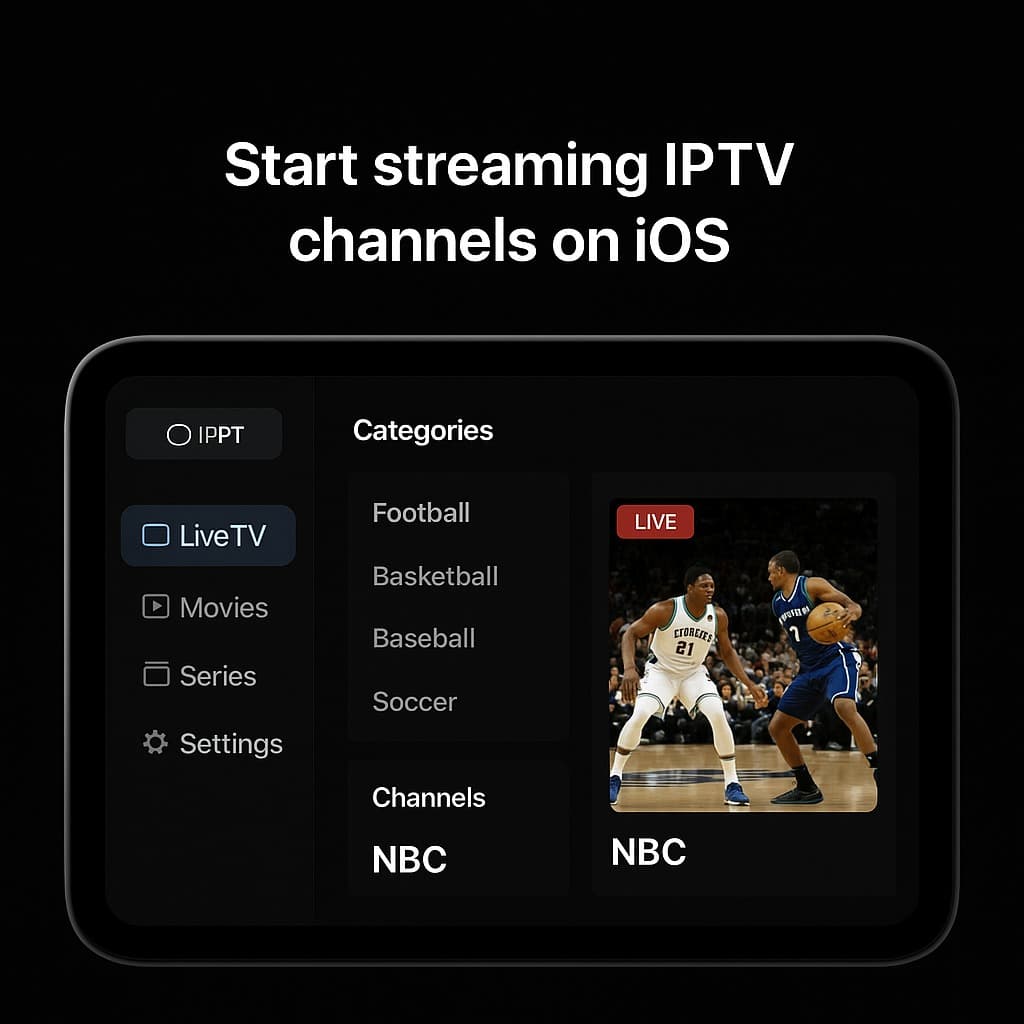
For a more detailed playlist guide, see how to add playlist to TiviMate.
Best Settings for Smooth Streaming
Adjust these in TiviMate for better performance:
- Hardware decoding — Enable in Playback settings for less buffering and lower CPU use
- EPG refresh — Set EPG update interval (e.g. every 12–24 hours) so the guide stays current
- Playlist refresh — Configure playlist update to pull new channels from your provider
- Buffering settings — Increase buffer size if you see stuttering; reduce if playback is delayed
Troubleshooting
Playlist not loading
Check the URL, username, and password. Ensure there are no extra spaces. Try refreshing the playlist in Settings. If using M3U, confirm the link works in a browser.
Invalid M3U link
The URL must start with http:// or https://. Include the port if your provider specifies one. Copy the full link from your provider—do not shorten or modify it.
Xtream Codes login error
Verify server URL format (with port), username, and password. Remove trailing slashes or add them if your provider requires. Contact your provider for correct credentials.
Channels not appearing
Refresh the playlist in Settings. Some providers need time to activate new accounts. Verify your subscription is active with your provider.
EPG not loading
EPG comes from your provider. Not all providers offer full EPG. In TiviMate, go to EPG settings and ensure the EPG source is set correctly. Try updating EPG manually.
Supported Devices
TiviMate runs on Android-based devices. Supported platforms include:
- Firestick — Install via sideloading. See our Firestick IPTV installation guide
- Android TV — Works on NVIDIA Shield, Xiaomi, and other Android TV boxes. See how to watch IPTV on Android TV Box
- Smart TVs — Android TV–based Smart TVs. For Samsung (Tizen), see how to watch IPTV on Samsung Smart TV
Alternative IPTV Apps
Other IPTV players you can use instead of TiviMate:
- IPTV Smarters Pro — User-friendly, supports Xtream Codes and M3U
- Smart IPTV — Lightweight, one-time purchase, popular on Smart TVs
- OTTPlayer — Web-based option, works in browsers
See our best IPTV apps guide for comparisons.
Understanding IPTV Login Types
IPTV providers offer two main ways to add your subscription: Xtream Codes (server URL, username, password) and M3U playlists (a single URL). Both work in TiviMate. For detailed guides on each format, see our Xtream Codes login guide and IPTV M3U playlist guide.
Related Guides
- IPTV Subscription UK Plans — Compare plans that work with TiviMate
- How to Add a Playlist to TiviMate
- How to Install IPTV on Firestick
- How to Install IPTV on Smart TV
- All Setup Guides
Need an IPTV subscription for TiviMate? Compare plans with UK channels and sports, or start with a free trial before subscribing.
View IPTV Plans